|
|
|
Main
> Business
& Finance >
Spread Sheets
> Name-Manager |
 This
Excel Add-in will allow you to easily and quickly create and manage all
Excel named ranges and constants. You can delete all redundant or broken
names, create named constants, dynamic named ranges (ideal for charts and
Pivot tables), create Worksheet level names, consecutive named ranges and
more. This
Excel Add-in will allow you to easily and quickly create and manage all
Excel named ranges and constants. You can delete all redundant or broken
names, create named constants, dynamic named ranges (ideal for charts and
Pivot tables), create Worksheet level names, consecutive named ranges and
more.
Go to & View Excel Named Ranges
To go to a range, you simply double click it.
Dynamic Named Range Index Sheet Creator
Will add a Worksheet to your Workbook that will list ALL your named ranges
with clickable Hyperlinks for each. The index that is created is dynamic and
will automatically update each time you select the Worksheet.
Hide Named Ranges From Others
On this page you select all or some names that you want to hide.
Show or View Hidden Excel Names
You then simply choose some/all to Unhide and click the Unhide button.
Delete Dead, Old, Redundant Names
By accessing the Orphaned Names page. This page will only show those named
ranges which have lost their reference. You can then either delete all, or
some, or use the Add/Edit/Delete Names button to re-define them.
Create a Map on Worksheets of Your Named Ranges
As the saying goes, "a picture can paint a thousand words".
Create Consecutive Named Ranges.
This feature is a real time saver. There are times when it makes perfect
sense to name related ranges with consecutive names. For example, you might
have four separate ranges on the one Worksheet that represent each quarter
of the year. After selecting the ranges, simply type the name quarter, click
Create Names and you instantly get 4 named ranges, Quarter, Quarter2,
Quarter3 and Quarter4. Or perhaps you have 52 ranges that represent the
Weeks of the year. To do this manually would take quite a while, with the
Name Manager it can be done in minutes!
Create Same Name Sheet Level Names.
Sheet Level Names allow you to use the exact same name to refer to a range
on many different Worksheets. For example, you can have the name ThisMonth
represent the range A1:A10 on many different Worksheets. Then, if you used =SUM(ThisMonth)
the SUM would always sum A1:A10 of the sheet the formula resides on. If
using the sheet level named range in VBA code, it will always refer to the
ActiveSheet at the time, assuming it has been specified.
Create Named Constants with Values
Named Constants are ideal for use in a large spreadsheet where common values
are used in calculations. Once a name has been assigned to a value, the name
can be used in formulae. For example if the number 0.15 (or 15%), with the
text TaxRate, is a Named Constant with the value of 0.15 or 15%. This could
then be used in calculations like =A1*TaxRate. Then, if the tax rate
changes, you simply make the change to the Named Constant and all your
formulae will update to reflect the new value.
Create Named Formulas in Excel Spreadsheets
Named Formulas can be used to create your own custom functions. Once
created, they save you having to re-enter the formula name, correct formula
syntax, parenthesis and formula reference range over-and-over. The functions
you can choose from are: AVERAGE, COUNT, COUNTA, COUNTBLANK, MAX, MIN and
SUM.
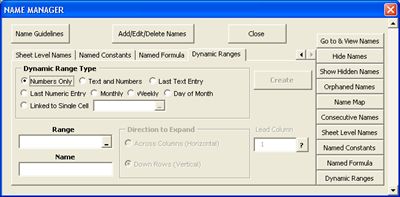
Create Dynamic Named Ranges in Excel Spreadsheets
The Dynamic Ranges page is arguably the add-ins most powerful and useful
feature. Dynamic Named Ranges are ranges that will expand/contract according
to the data in the range. The great part about this is your named ranges
will only include those cells that house data. This makes them ideal for
Pivot Tables, Charts, Validation Lists, and restricting formula
calculations.
There are 8 different types of Dynamic Ranges you can create: Numbers Only,
Text and Numbers, Last Text Entry, Last Numeric Entry, Monthly, Weekly, Day
of Month, Linked to Single Cell. |
|
Buy
Now |
|
Name-Manager screenshot:
|
|
|
Product
Information
|
-
Version: -
-
Price:
$29.95
-
Size:
MB
-
License:
Shareware
-
Developer:
Dave Hawley
-
OS:
Windows
-
Rating:

|
|
|
|
